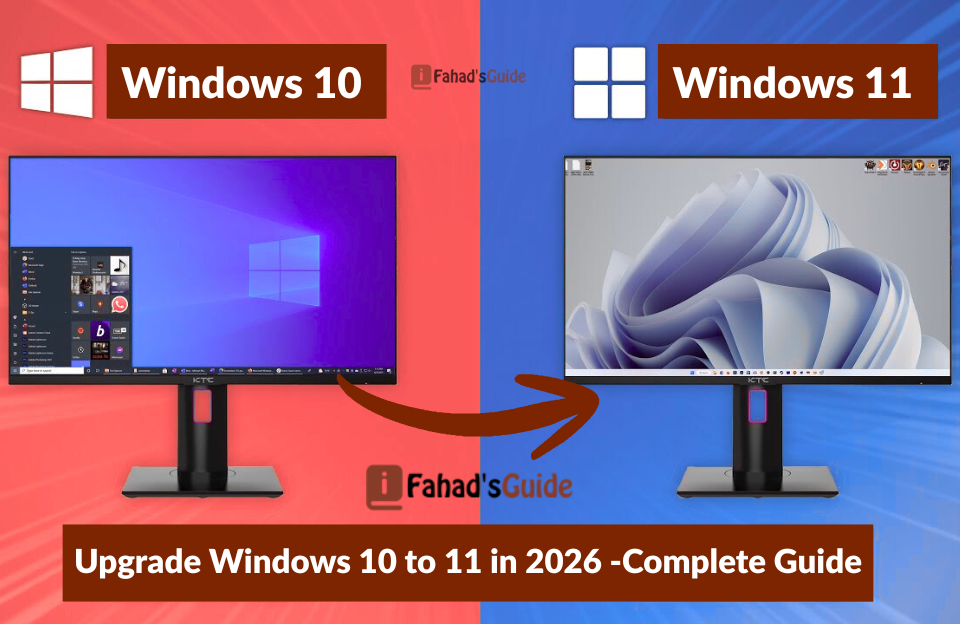
If you’re still running Windows 10 in 2026, you’re probably wondering whether it’s finally time to make the jump to Windows 11. Microsoft has been pushing the upgrade for years now, but is it actually worth it? Or should you stick with what works?
The answer isn’t as simple as “yes” or “no.” It depends on your hardware, your needs, and how you use your computer. Let’s break down everything you need to know to make the right decision.
The Big Picture: What’s Changed
Windows 11 launched in late 2021, and it’s had several years to mature. Microsoft has fixed many of the early bugs, added features, and refined the experience. Meanwhile, Windows 10 is approaching the end of its support lifecycle, with official support ending in October 2025.
That timeline is crucial. If you’re reading this in 2026, Windows 10 is no longer receiving security updates from Microsoft. That alone is a compelling reason to consider upgrading, but let’s look at the full picture.
The Hardware Reality Check
Before you even think about upgrading, you need to know if your computer can run Windows 11. Microsoft’s hardware requirements are significantly stricter than Windows 10, and this is where many users hit a roadblock.
Windows 11 requires:
- A compatible 64-bit processor (8th gen Intel or 2nd gen AMD Ryzen and newer)
- 4GB of RAM minimum (8GB recommended)
- 64GB of storage
- UEFI firmware with Secure Boot capability
- TPM version 2.0 (Trusted Platform Module)
- DirectX 12 compatible graphics with WDDM 2.0 driver
- 720p display, at least 9 inches diagonally
The TPM 2.0 requirement is the dealbreaker for most older computers. Even if your PC is fast and runs perfectly fine, without TPM 2.0, you’re officially out of luck. Some people have found workarounds to bypass these requirements, but Microsoft doesn’t recommend it, and you might miss out on future updates.
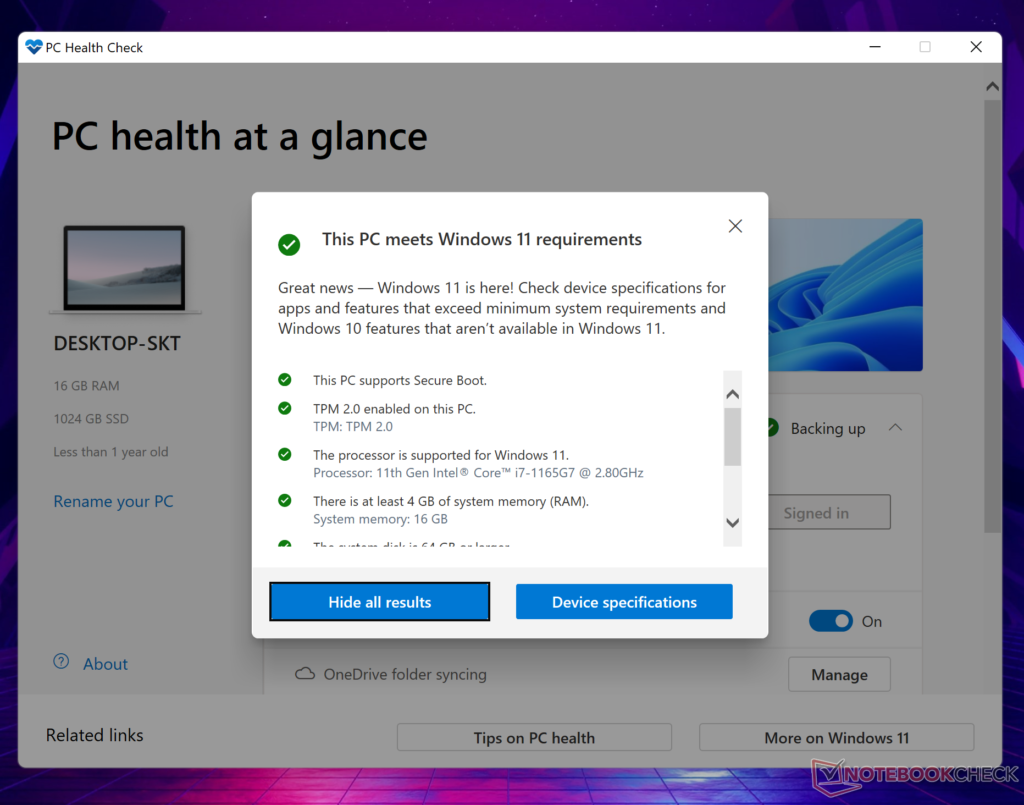
Run the PC Health Check app from Microsoft to see if your computer qualifies.
What Windows 11 Actually Gives You
If your hardware passes the test, here’s what you get by upgrading:
The Interface Overhaul
The most obvious change is the visual redesign. The Start menu moves to the center of the taskbar by default (though you can move it back to the left if you prefer). Windows, menus, and icons have rounded corners and a cleaner, more modern look. The right-click context menus are simplified.
Some people love the fresh aesthetic. Others find it unnecessary and prefer Windows 10’s more straightforward interface. This is largely personal preference, though the centered taskbar does take some getting used to if you’ve spent years with it on the left.
Snap Layouts and Virtual Desktops
Windows 11’s multitasking features are genuinely better. Hover over the maximize button on any window, and you’ll see snap layout options—predefined arrangements for organizing multiple windows on your screen. It’s faster and more intuitive than Windows 10’s basic snap feature.
Virtual desktops also got an upgrade. You can now give each desktop a custom wallpaper and name, making it easier to separate work, personal projects, and entertainment spaces.
Performance Improvements
Microsoft claims Windows 11 is faster and more efficient, and in most cases, that’s true. The operating system wakes from sleep faster, updates install more quickly in the background, and memory management is better optimized.
That said, the performance difference isn’t night and day. If you have a capable PC, you’ll notice slightly snappier performance. If you’re on older hardware that barely meets the requirements, you might actually see worse performance than Windows 10.
Better Gaming Features
Windows 11 includes Auto HDR (if you have a compatible display), DirectStorage for faster game load times on NVMe SSDs, and tighter integration with Xbox Game Pass. If you’re a gamer, these features provide real benefits, especially on newer hardware.
The Security Question
Here’s where things get serious. Windows 10’s support for security updates ended in October 2025. If you’re still using it in 2026, you’re running an operating system that no longer receives patches for newly discovered vulnerabilities.
This doesn’t mean your computer will immediately get infected with malware, but the risk increases over time. Every month that passes without security updates makes Windows 10 less safe to use, especially if you browse the web, download files, or use email.
Windows 11’s security improvements, including mandatory TPM 2.0, secure boot, and virtualization-based security, provide better protection against modern threats. For most users, the security benefits alone justify upgrading.
The Compatibility Consideration
Most software that runs on Windows 10 works fine on Windows 11. However, there are exceptions:
Older programs, especially specialized business software or hardware drivers, might have issues. If you rely on specific software for work, check with the vendor to confirm Windows 11 compatibility before upgrading. Printers, scanners, and other peripherals might need updated drivers. Most major manufacturers provide Windows 11 drivers, but niche or discontinued products might not work properly.
How to Upgrade (If You Decide To)
If your PC is eligible, upgrading is free and relatively straightforward:
- Back up your important files. Use an external drive or cloud storage. Always do this before major system changes.
2. Check compatibility. Download Microsoft’s PC Health Check tool to verify your system meets all requirements.
3. Update Windows 10 fully. Make sure you’re running the latest version of Windows 10 before upgrading.
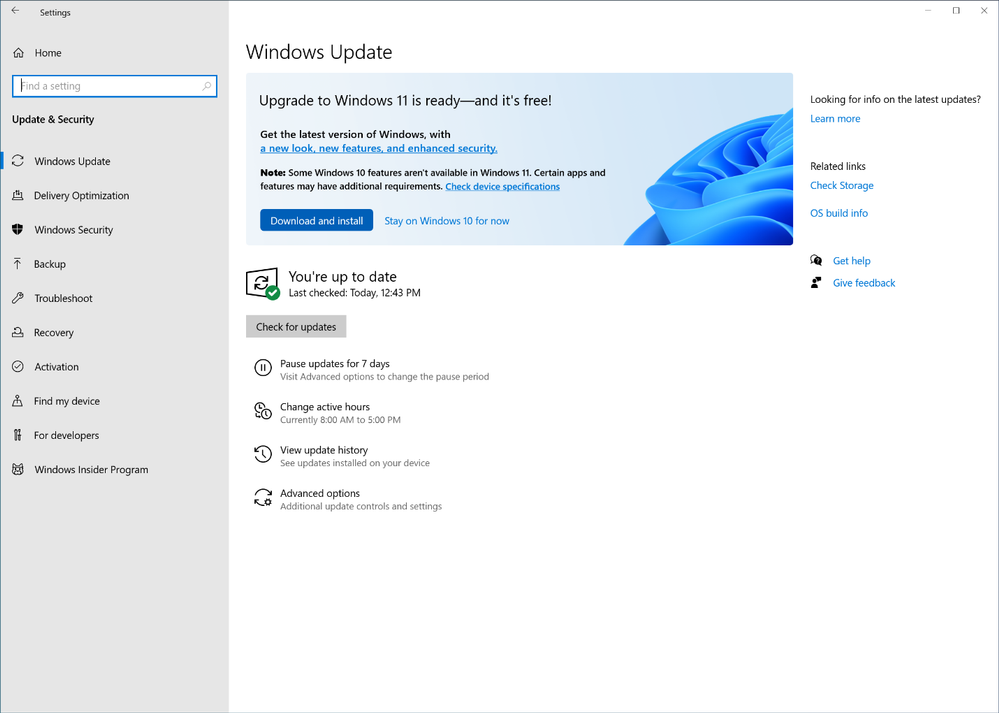
4. Go to Settings > Update & Security > Windows Update. If your PC is eligible, you’ll see the option to upgrade to Windows 11.
5. Follow the prompts. The process takes 30-60 minutes, depending on your system. Your PC will restart several times.
6. Set up Windows 11. You’ll go through the initial setup process. Take your time with privacy settings. Windows 11 wants a lot of permissions by default.
You have 10 days after upgrading to roll back to Windows 10 if you don’t like Windows 11. After that window closes, reverting requires a clean installation of Windows 10.
The Practical Bottom Line
In 2026, the question isn’t really “Should I upgrade?” but rather “Can I upgrade, and what happens if I can’t?”
If your hardware supports Windows 11: Yes, upgrade. The security updates alone make the transition worth it, and the feature improvements are genuinely useful. The interface changes might take a few days to adjust to, but most users adapt quickly.
If your hardware doesn’t support Windows 11, you have three options:
- Buy a new computer with Windows 11
- Continue using Windows 10 (accepting the security risks)
- Switch to a Linux distribution like Ubuntu, which runs great on older hardware and receives regular security updates
For most people on compatible hardware, Windows 11 is the smart choice in 2026. It’s matured considerably since launch, most bugs are fixed, and staying on an unsupported operating system is increasingly risky.
Take an hour on a weekend, back up your files, and make the jump. You’ll probably wonder why you waited so long.